01. Get Started Option 1
Run an AdWords Campaign Part 2
In this project, you will run, report, and evaluate your AdWords campaign.
Activate your campaign
Once your campaign setup has been approved by Udacity, it’s time to run your campaign. In order to activate the campaign, carefully follow the following steps to make sure you are not exceeding your assigned budget or $125 (for your own company option):
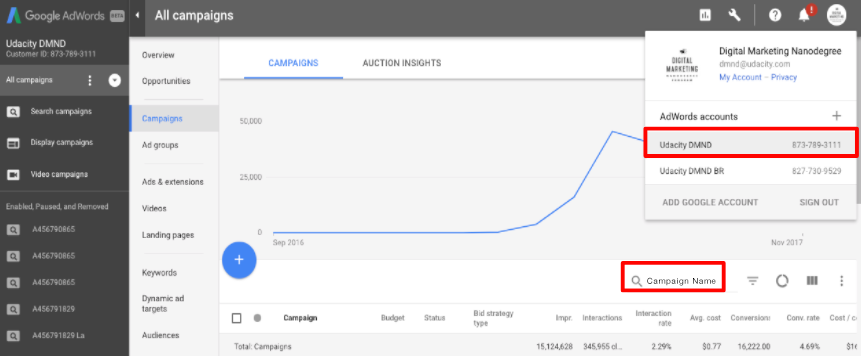
(1) Log into AdWords. If you are advertising a Udacity course, make sure that you are in the Udacity account: The Customer ID in the top right-hand corner should be 873-789-3111. If this is not the case, click on the arrow next to the Customer ID and pick the right account.
(2) If you are not already in the Campaign Management section, click on Campaigns in the top navigation bar.
(3) Find your assigned campaign name in the list of campaigns. The easiest way to find it is typing in your assigned campaign name in the search box on the left.
You now should see an overview of your Ad Groups; the status should say Campaign paused.
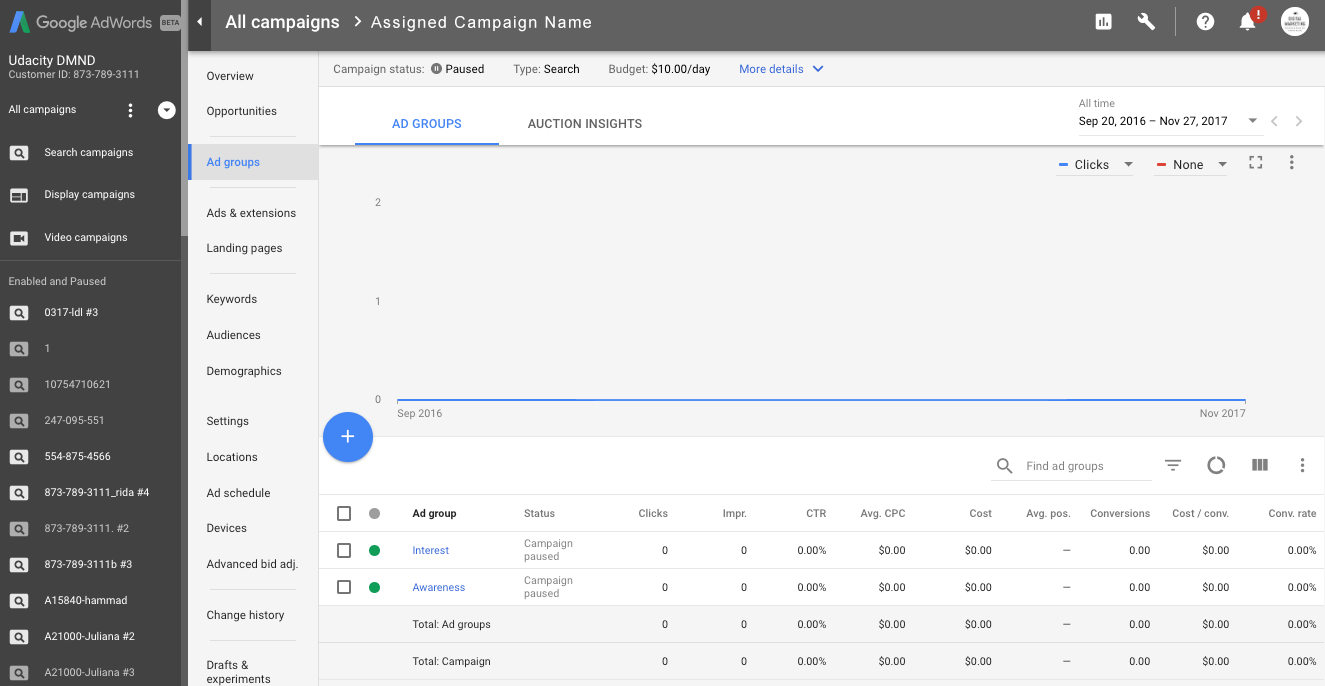
(4) Next click on the drop-down menu Settings tab
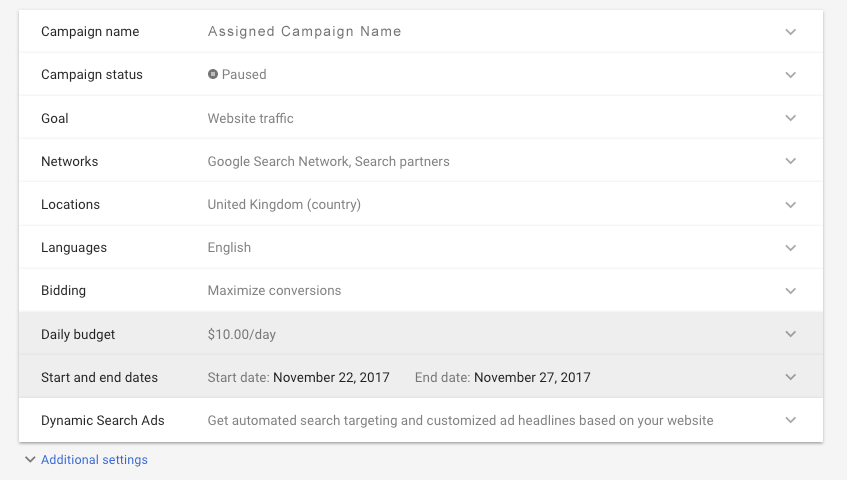
(5) Scroll down, confirm that your budget is set to $10.00/day or $15.00/day and then locate the Start and end dates at the bottom. Click on the section.
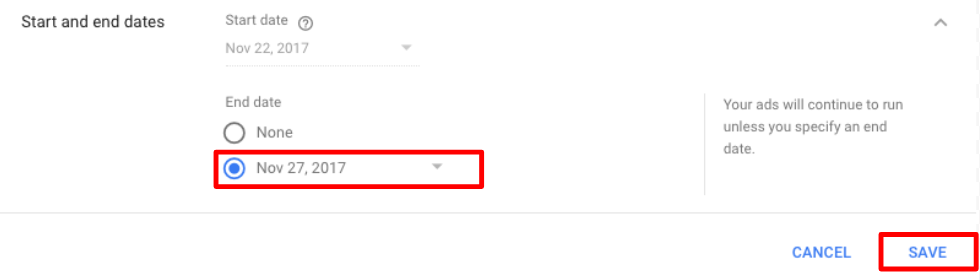
(6) Now click the drop-down button below End date, click into the field and pick a date that is five days from today
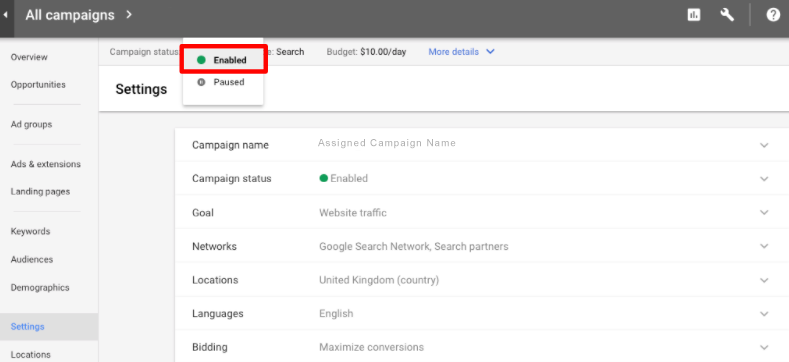
(7) Scroll back to the top of the page and click on the drop-down menu that says Paused. Pick Enable which will start your campaign
During the five days your campaign runs, feel free to log into AdWords to monitor your results. To ensure that you can draw some meaningful conclusions once the campaign is completed, we recommend that you don’t make any changes while it is running.